
Unfamiliar Remote-Control Software on Windows? Check Access and Secure the PC
A practical Windows guide for distinguishing approved support tools from suspicious remote-control software, reviewing startup and Remote Desktop settings, and completing Defender scans safely.
Do not begin by deleting an unfamiliar remote-control program. First decide whether it is an approved work or school management tool, a support session you requested, or software you do not remember installing. Then stop external access and preserve the identifying details.
First actions
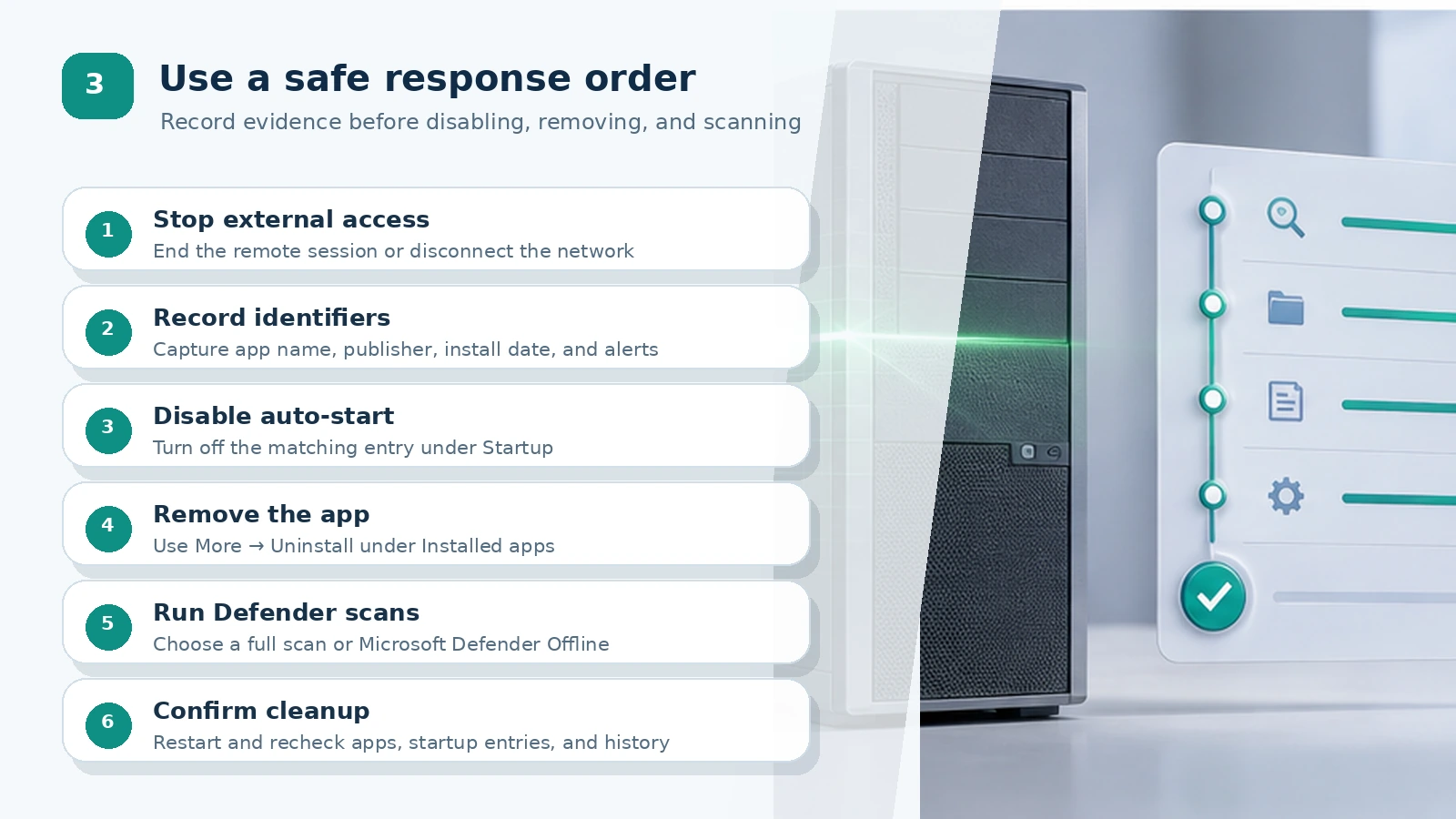
If the pointer is moving by itself or windows are opening and closing, stop using the PC and end the session from the remote-support window. In Microsoft Quick Assist, use Cancel control or Leave. If you cannot regain control or find the session window, turn off Wi-Fi or unplug the Ethernet cable to stop the external connection.
Capture the program name, publisher, installation date, connection code, and visible alerts before removal. Those details may be difficult to recover later. Avoid including passwords, verification codes, or personal identifiers in screenshots that you intend to share.
Legitimate management tools and warning signs
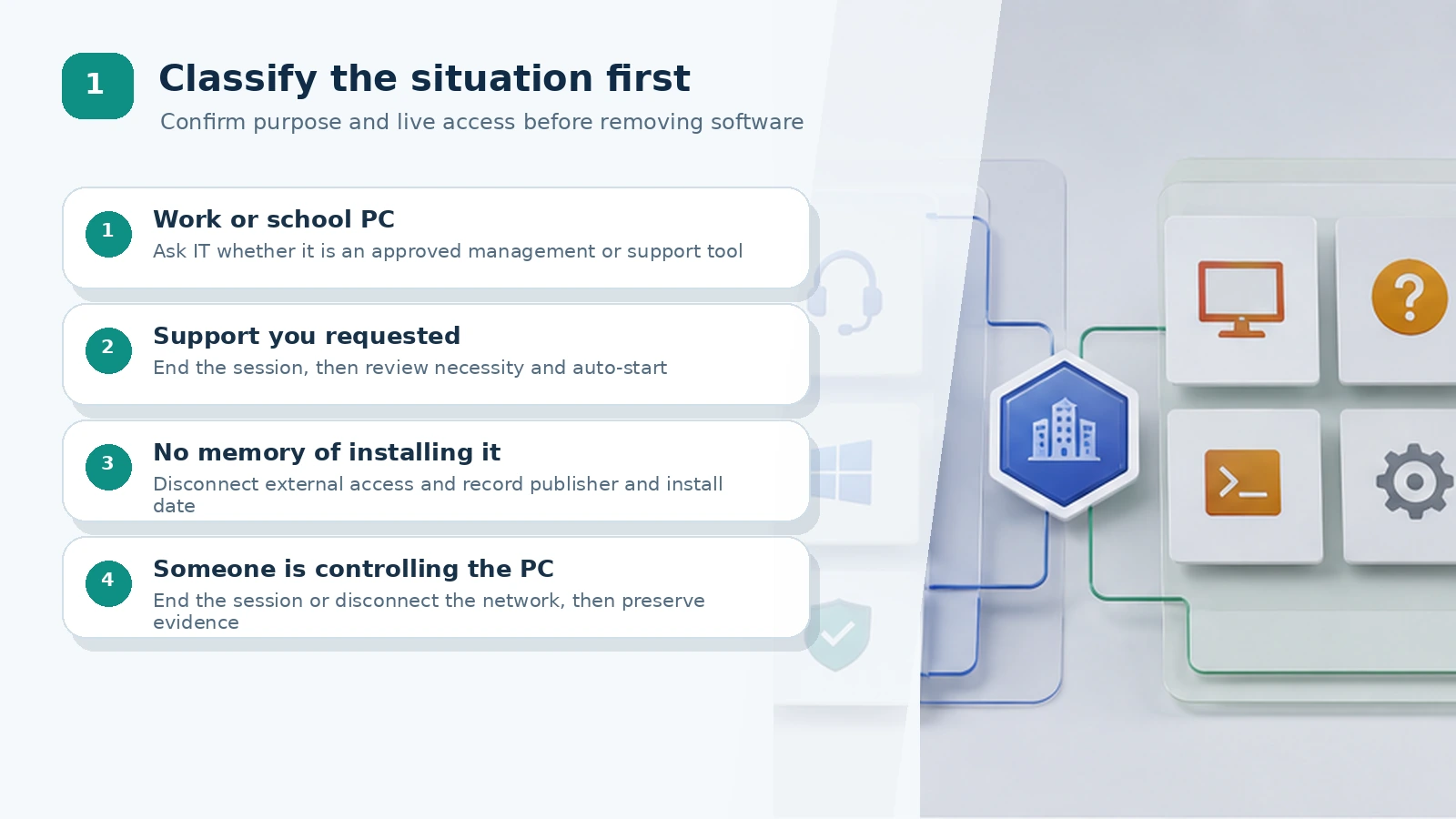
Remote-control software is not inherently malicious. A company help desk may install it for device management, or you may have launched it during a support call you initiated. On a work or school computer, ask IT whether the software is approved before removing it; an unplanned removal can break management policy or support access.
Risk rises when an unsolicited caller or alarming pop-up pressures you to install a tool, open banking or email accounts, enter verification codes, disable security controls, or download more files. Microsoft warns that tech-support scammers use remote access to steal information or install malware. Genuine Microsoft error messages do not include phone numbers, and Microsoft does not make unsolicited support calls about device problems.
- Possibly legitimate: support you requested, an approved organizational tool, and a named owner with a clear purpose.
- Needs investigation: no memory of installation, an unclear publisher, automatic launch at sign-in, or reappearance after removal.
- Urgent: live mouse or window control, requests for payment or codes, or instructions to disable security.
Reviewing Installed apps
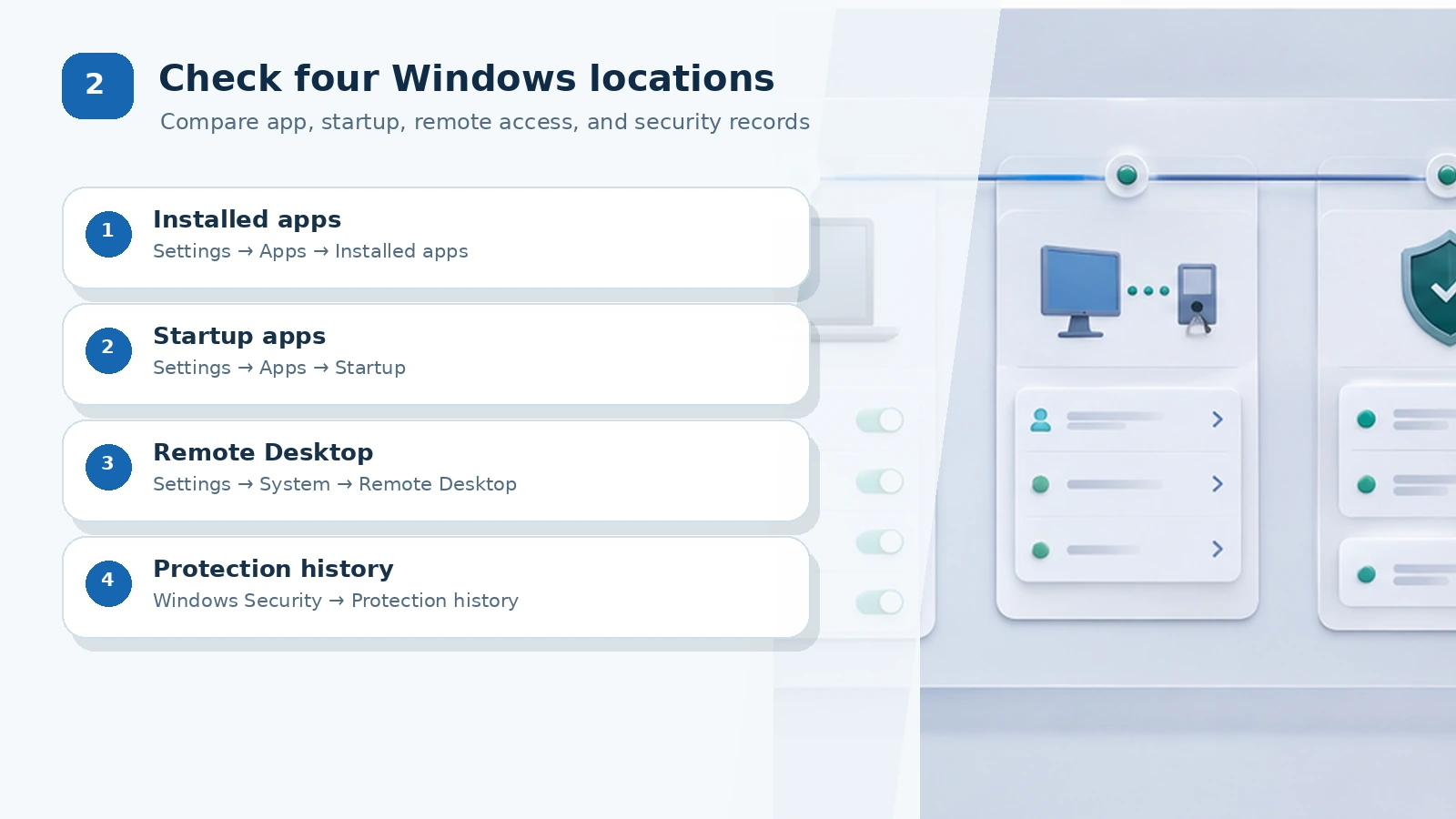
In Windows 11, open Start and go to Settings > Apps > Installed apps. If sorting by installation date is available, compare the list with the date of the suspicious call or support session. Microsoft’s removal instructions use the same path: locate the app, open More, and select Uninstall.
Do not judge by the name alone. Record the publisher and installation date, and ask IT about approval on a managed device. Even a support tool that you knowingly used may be unnecessary after the session; you can disable its automatic startup and remove it through the official path.
Some desktop programs cannot be removed in Settings and remain under Control Panel > Programs > Programs and Features. Microsoft documents that route as an alternative. If removal requires an administrator password or a separate uninstaller, avoid third-party cleanup tools. Use the vendor’s official instructions on a personal PC or ask the organization’s administrator.
Startup and Remote Desktop settings
Open Settings > Apps > Startup to see applications that launch when you sign in. Microsoft explains that switching an entry off prevents that application from starting automatically at sign-in. This can reduce the chance that a suspicious tool immediately waits for a connection after reboot, but it does not remove the software or service. Continue with removal and a security scan.
Check the built-in Remote Desktop feature separately under Settings > System > Remote Desktop. Microsoft’s setup guide shows that a receiving PC enables this option and uses the PC name for a connection. Turn it off on a personal PC if you do not use it. On a managed device, ask IT whether policy controls the setting. Disabling Remote Desktop does not disable third-party tools, so it cannot replace the Installed apps review.
Quick Assist requires the person receiving help to enter a six-digit code, allow screen sharing, and approve a separate request before full control begins. When support is finished, choose Leave. Do not assume that an old Quick Assist code gives permanent access; inspect installed software, startup entries, and Remote Desktop independently.
Windows Security scans and history
After recording the program and stopping access, open Windows Security > Virus & threat protection and run a Quick scan. For a specific file or folder, right-click it in File Explorer and choose Scan with Microsoft Defender. Windows 11 may place that command under Show more options.
If the program returns after removal or suspicious behavior continues, open Scan options and use a Full scan or Microsoft Defender Offline. The offline scan restarts the PC and runs in the Windows Recovery Environment. Save open work first. Coordinate with IT on managed systems, particularly where a BitLocker recovery key may be required.
After the scan, open Windows Security > Protection history. It lists Defender actions, quarantined items, potentially unwanted apps, and key services that were turned off. Microsoft says events are retained for about two weeks, so record the detection time and item name. Do not add a warning to Allowed threats simply to make it disappear; if a threat was allowed accidentally, use Don’t allow and scan again.
Actions for each outcome
- Approved work or school tool: keep it unless IT instructs otherwise, and confirm its startup and access permissions match policy.
- One-time support tool you requested: end the session, disable startup, and uninstall it if no longer needed.
- Software you do not remember installing: stop external access, record name, publisher, and date, then disable startup, uninstall, and scan.
- Remote session exposed banking, email, or work accounts: change passwords from a clean device, review sign-in activity, and inspect transactions.
- Program returns after removal: run Microsoft Defender Offline and recheck administrator accounts, startup entries, and browser extensions.
Unsafe shortcuts to avoid
Do not download a similarly named “special removal tool” from search results or run unverified registry commands. A fake cleanup utility can install additional software, while incorrect registry changes can damage Windows startup and security controls. Use Microsoft’s Settings or Control Panel paths and the software vendor’s official documentation.
Do not follow instructions to disable Defender real-time protection, the firewall, or User Account Control during an investigation. End a session if a support agent asks you to turn off security permanently or provide unrelated personal data. If a frightening browser pop-up cannot be closed, Microsoft recommends closing the browser with Alt+F4 or restarting the PC.
Account and sensitive-data follow-up
If email, cloud storage, business systems, or online banking were opened during the session, separate device cleanup from account recovery. Change passwords on a clean device, then review recent sign-ins and connected devices. For a Microsoft account, the Recent activity page shows significant security events from the past 30 days and offers a This wasn’t me option for unrecognized activity.
If you disclosed card details or verification codes, or sent money, uninstalling the program is not enough. Contact the relevant financial institution immediately to review transactions and apply its blocking process. This guide focuses on Windows remote-access traces and protective settings; financial-loss response should follow the bank’s and law-enforcement agency’s official procedures.
Completion checklist
- The app window or tray icon does not return after restart.
- The matching entry is disabled or gone under Settings > Apps > Startup.
- The program is absent from both Installed apps and Programs and Features.
- Remote Desktop is off on a personal PC where it is not used.
- Windows Security scans finished and Protection history was reviewed.
- Important accounts opened during the session have updated passwords and reviewed activity.
- IT confirmed the approved status and follow-up on a work or school PC.
Official help
Windows labels can vary slightly by version. Use the current Microsoft documentation for Installed apps, Startup, Remote Desktop, and Windows Security as the reference for your screen. If the incident involved an impersonated support agent, Microsoft also provides an official technical-support scam reporting page.
Sources reviewed
- Uninstall or remove apps and programs in WindowsMicrosoft Support · Official source
- Configure Startup applications in WindowsMicrosoft Support · Official source
- How to use Remote DesktopMicrosoft Support · Official source
- Solve PC problems remotely using Quick AssistMicrosoft Support · Official source
- Virus and Threat Protection in the Windows Security AppMicrosoft Support · Official source
- Protection History in the Windows Security AppMicrosoft Support · Official source
- Protect yourself from online scams and attacksMicrosoft Support · Official source
- What is the Recent activity page?Microsoft Support · Official source
SECUFOCUS NOW reorganized and analyzed the material above. This article does not replace the original sources.
Related SecuNote articles
Cloned Car Dealership Websites: How to Verify a Vehicle Before Paying
Scammers are cloning real car dealership websites, listings, photos, reviews, and sales policies to demand upfront wire payments…
Unfamiliar Configuration Profile on iPhone? Check Management and Secure the Device
Configuration profiles can apply work or school accounts, VPN settings, certificates, and other controls to an iPhone. This guide…
Fake Buyer-Protection Portals: Refund, ID and Bank-Detail Checks
A newly disclosed HKICL impersonation scheme combined refund support, identity verification, bank details, a fake wallet and an…
Comments
No comments yet.