
Unfamiliar Configuration Profile on iPhone? Check Management and Secure the Device
Configuration profiles can apply work or school accounts, VPN settings, certificates, and other controls to an iPhone. This guide shows how to identify the issuer, separate personal devices from organization-managed devices, and respond without disrupting legitimate management.
If you find a configuration profile you do not recognize under VPN & Device Management, do not remove it immediately. Profiles are used for legitimate work and school networks, accounts, certificates, VPN settings, apps, and restrictions. A name you do not remember does not prove that the iPhone has been compromised. The safer first step is to identify the issuer, the settings it applies, and whether the phone is personal or managed by an organization.
Check Before You Remove
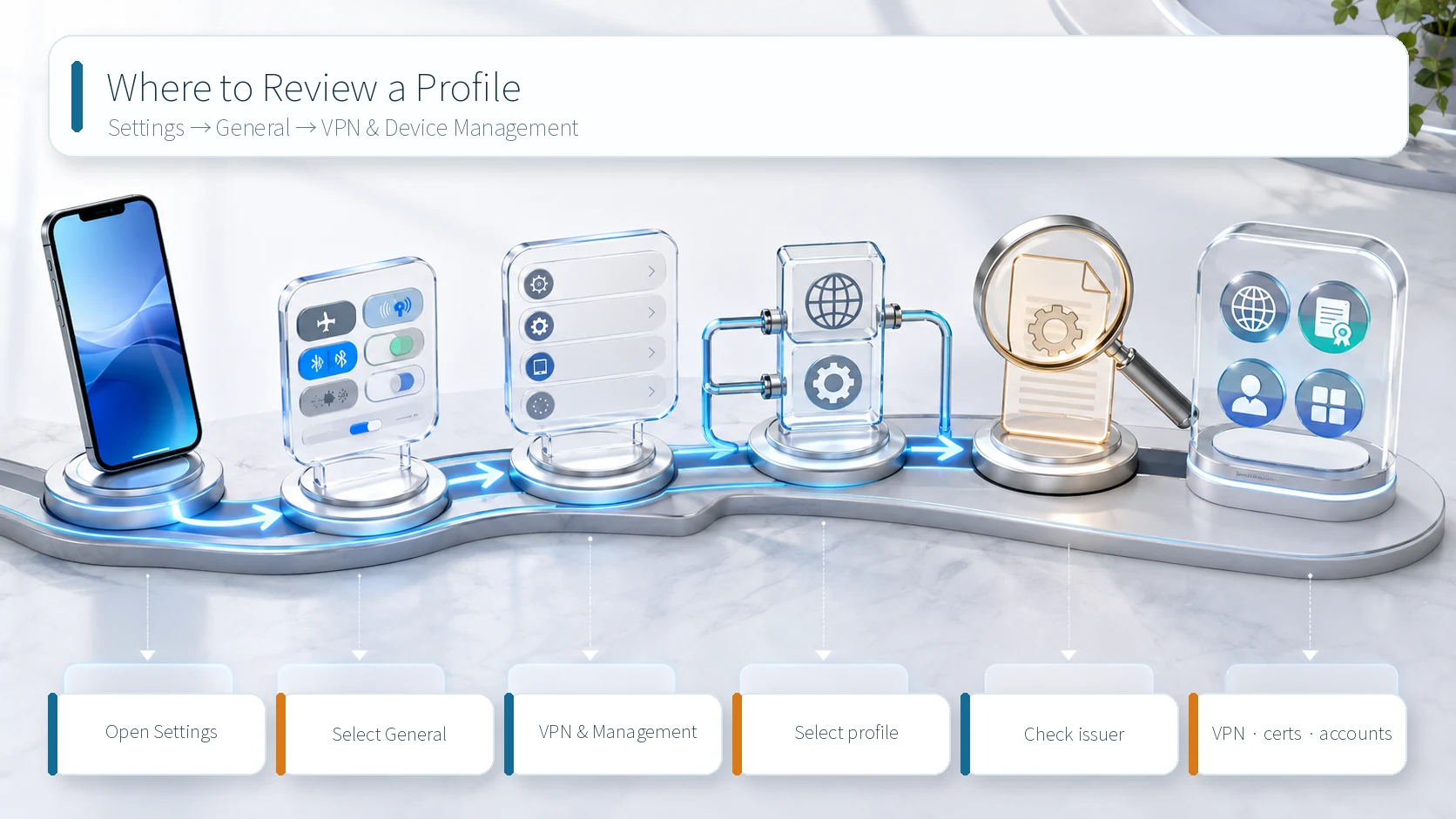
Apple places installed profiles at Settings → General → VPN & Device Management. Open the profile and document its name, issuer or organization, description, and the settings it contains. Take screenshots before changing anything. This record helps you compare what disappears after removal and gives a work or school administrator enough context to verify whether the profile was deployed intentionally.
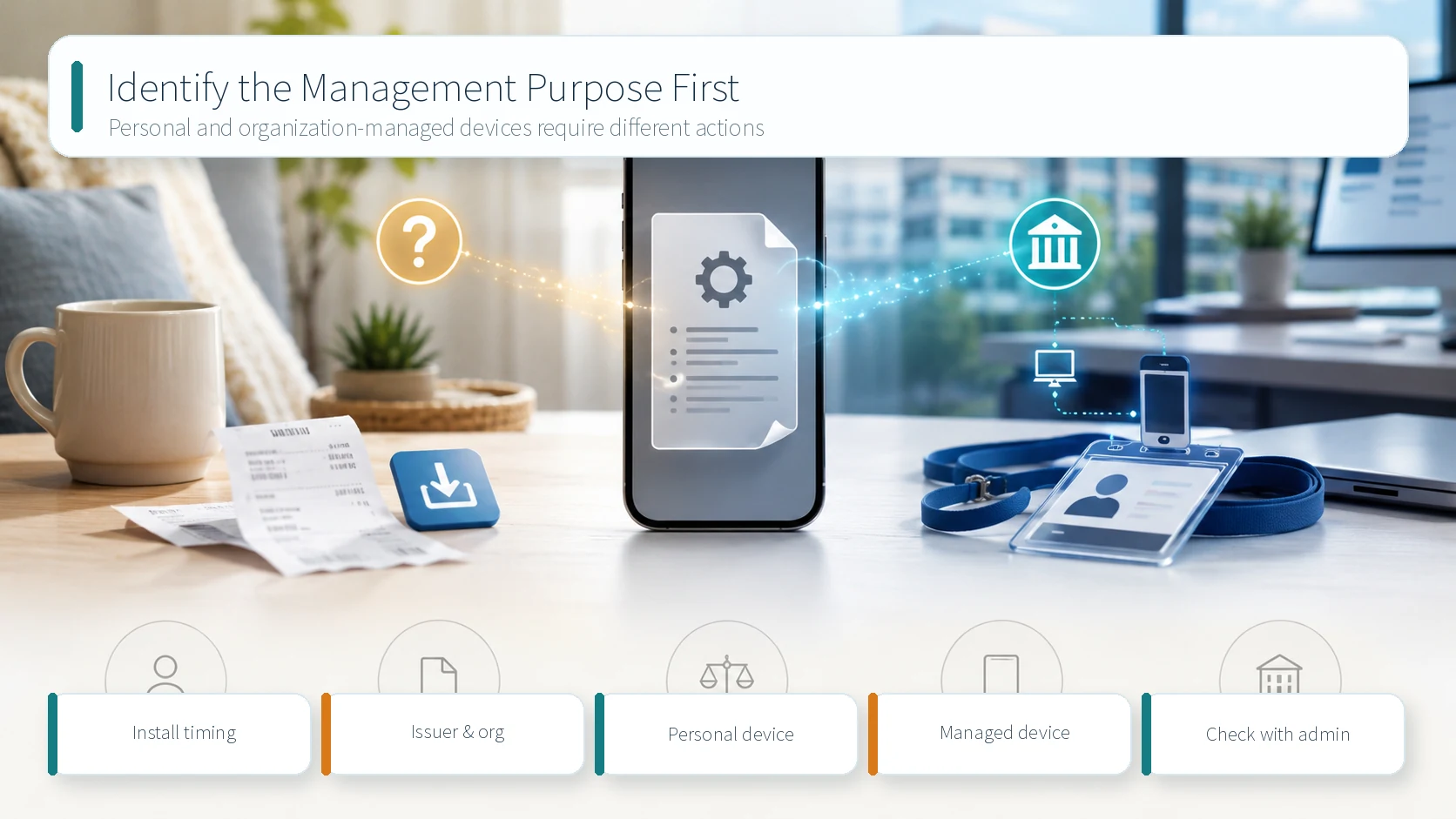
Next, classify the device. A company- or school-owned iPhone follows a different response path from a phone you bought and set up yourself. A personally owned phone can still be enrolled for work or school if you completed an organization portal or enrollment flow. An old organization name on a second-hand phone, or a profile that appeared immediately after following an unexpected email, text message, or web link, deserves closer review.
Legitimate Management and Warning Signs
Legitimate profiles usually have a clear context: an employer provided email, Wi-Fi, or VPN access; a school enrolled the device for classes; or you deliberately started a setup flow for a trusted service. In those cases, compare the profile name and issuer with the organization or service documentation before making changes.
Pay closer attention when a personal iPhone suddenly reports organization management without an enrollment you remember, the issuer does not match the party that sent the installation link, or unfamiliar VPN, certificate, account, or app settings appeared at the same time. Do not trust a familiar company name by itself. Compare the message, web address, issuer, installation timing, and payloads as one set of evidence.
Review Path
- Open Settings and select General.
- Open VPN & Device Management and review the listed profiles and management entries.
- Select the unfamiliar profile and read its name, issuer, organization, and description.
- Record any VPN, certificate, account, app, or restriction payloads.
- Choose the personal-device or work-and-school path based on ownership and enrollment history.
Work or School Managed Device
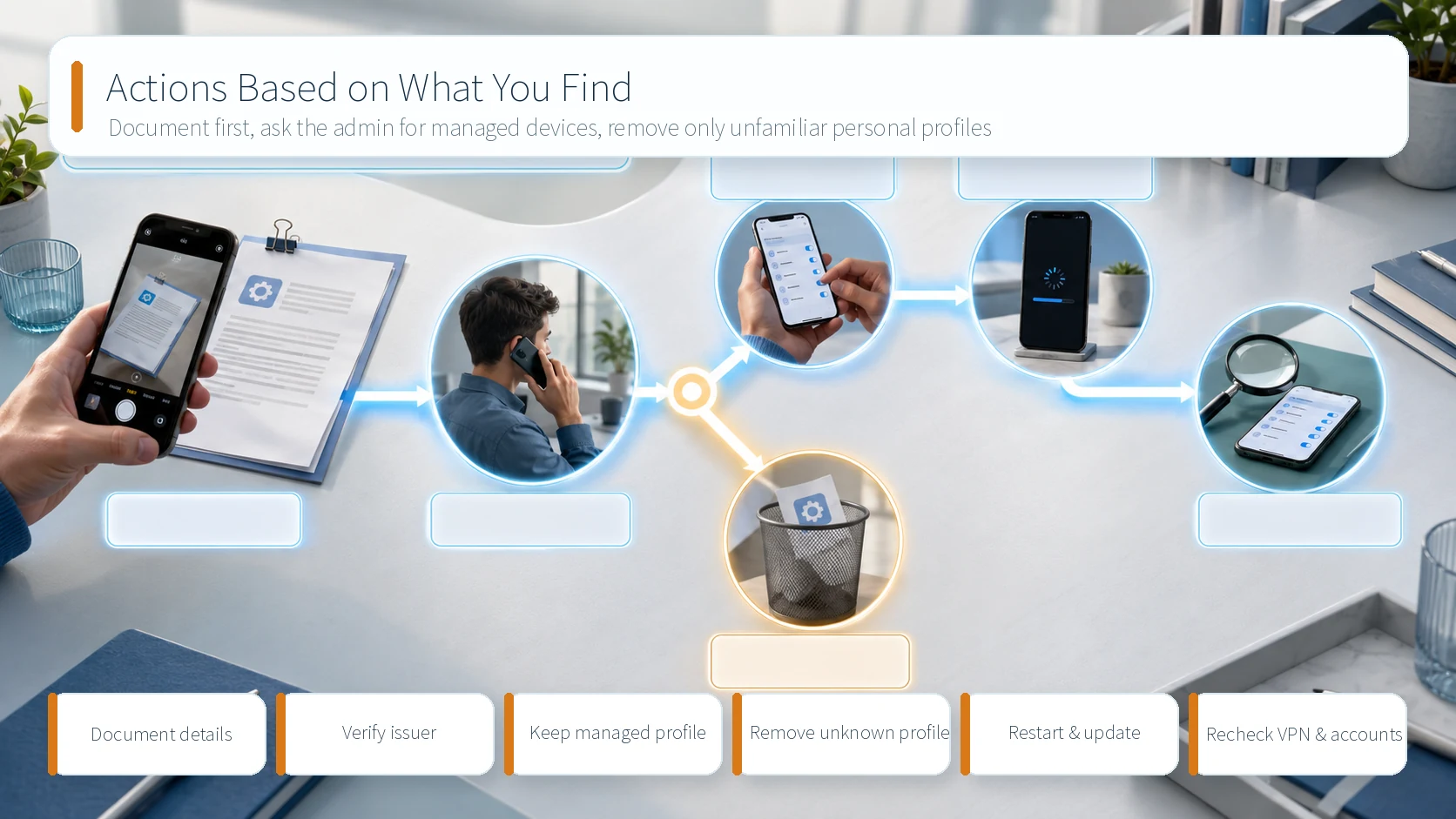
Do not remove the profile first on an organization-owned device, a phone carrying an asset tag, or a device you enrolled for work or school. Apple supervision is generally used for organization-owned devices and gives the organization additional control over settings and restrictions. Removing management can disrupt email, Wi-Fi, VPN access, certificates, internal apps, and profile-associated data. Record the organization and profile names, then ask the help desk or school administrator whether the deployment is expected.
Keep the profile if the administrator confirms it is legitimate. If the administrator denies deploying it, provide your screenshots, installation timing, and any related message, then follow the organization’s incident-response process. If no removal option appears, do not look for a bypass. The enrollment method or policy may prevent user removal, so ownership verification and administrator action come first.
Personal Device
If you own and manage the iPhone, have no work or school enrollment, and cannot connect the issuer to a service you intentionally configured, finish documenting the details and use the removal option on the profile page. Enter the device passcode and complete the prompts. Apple notes that deleting a profile also deletes the settings, apps, and data associated with it, so compare the profile with official support information for any trusted VPN or service before removal.
After removal, restart the iPhone and return to VPN & Device Management to confirm the entry is gone. Review VPN connections, added accounts, certificates, and unfamiliar apps. Do not reopen the link or message that led to the installation. Install the latest available iOS update through Settings → General → Software Update when you are ready. If the profile appeared alongside unexpected Apple Account sign-in alerts or password changes, review the account’s device list and sign-in security separately.
Before Erasing the iPhone
One unfamiliar profile is not a reason to erase the entire iPhone immediately. Device ownership, issuer, included settings, and installation timing usually provide a safer basis for the next step. A factory reset can destroy useful evidence and needed data, while organization-owned devices may automatically enroll again. Avoid third-party “profile remover” or cleanup apps from unknown sources. Use the built-in iOS settings and support channels from Apple or the organization.
Completion Checklist
- Documented the profile name, issuer, organization, and payloads.
- Classified the iPhone as personal or organization-managed.
- Checked with the administrator before changing a managed device.
- Removed an unfamiliar personal profile only through the built-in settings.
- Restarted and reviewed profiles, VPNs, accounts, and apps again.
- Did not reopen the installation link or reinstall the same profile.
This guide was reviewed on September 2, 2026, using Apple’s iPhone User Guide and Apple Platform Deployment documentation. Labels and removal permissions can vary by iOS version and organization policy, so follow the administrator’s instructions on a managed device.
Sources reviewed
- Install or remove configuration profiles on iPhoneApple · Official source
- About Apple device supervisionApple · Official source
- Intro to device management profilesApple · Official source
SECUFOCUS NOW reorganized and analyzed the material above. This article does not replace the original sources.
Related SecuNote articles

Cloned Car Dealership Websites: How to Verify a Vehicle Before Paying
Scammers are cloning real car dealership websites, listings, photos, reviews, and sales policies to demand upfront wire payments…
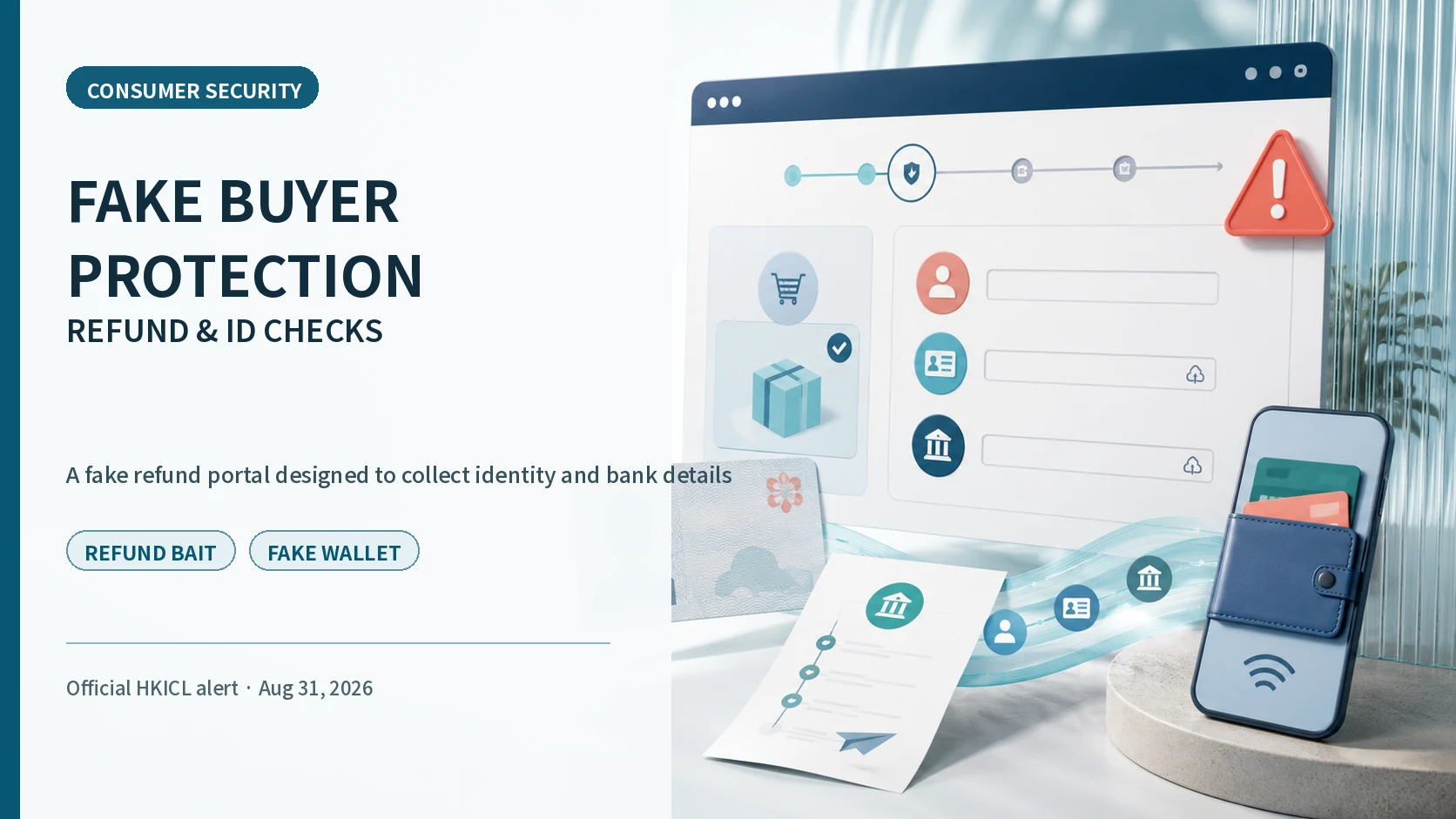
Fake Buyer-Protection Portals: Refund, ID and Bank-Detail Checks
A newly disclosed HKICL impersonation scheme combined refund support, identity verification, bank details, a fake wallet and an…
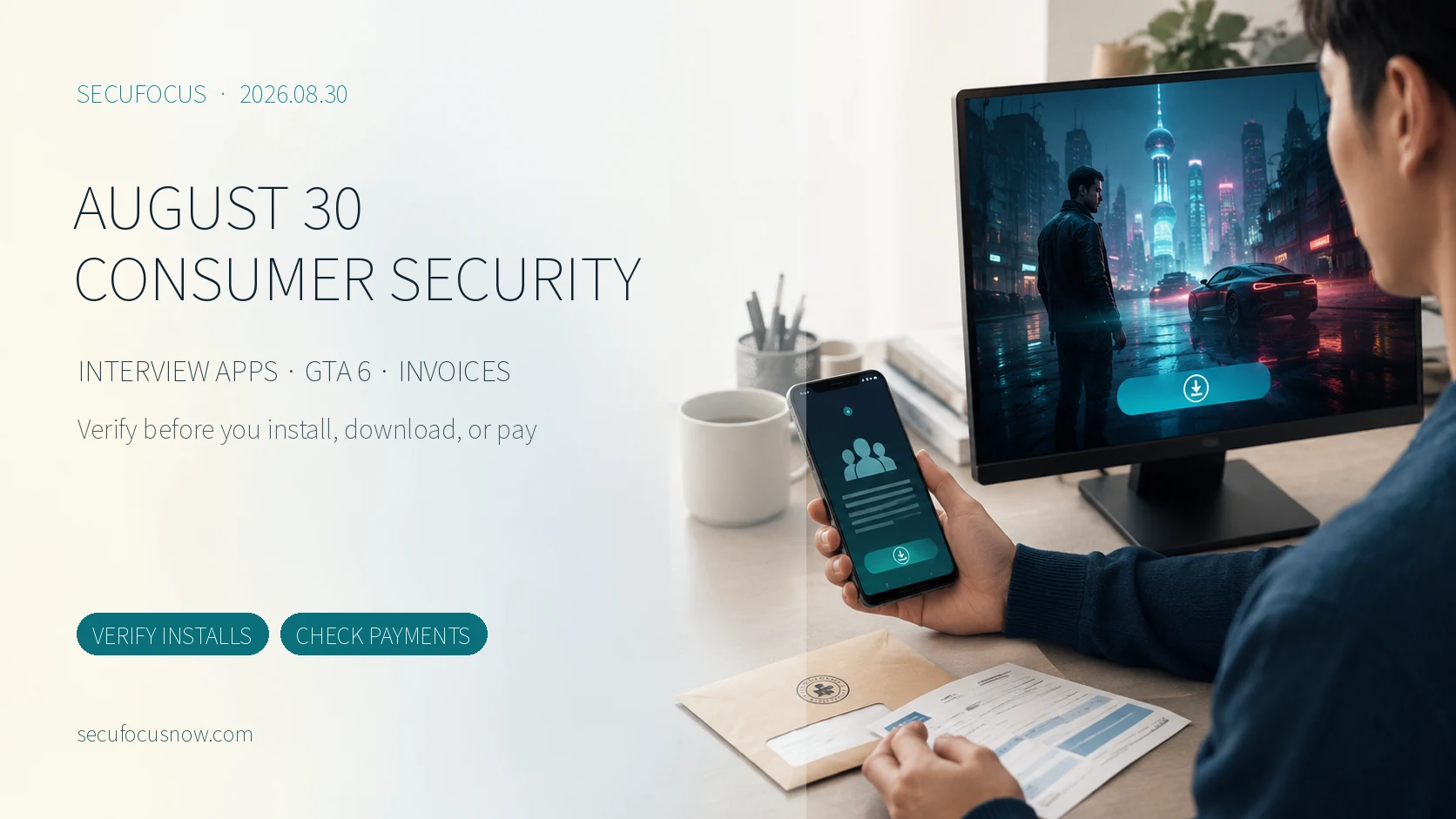
August 30 Consumer Security Briefing: Fake Interview Apps, GTA 6 Downloads, and Municipal Invoices
Three recent schemes exploit trusted moments—a job interview, a highly anticipated game search, and a municipal invoice. This…
Comments
No comments yet.