
Unfamiliar Google Account Sign-In or Device? Review Sessions and Secure Access
A practical guide to distinguishing normal Google Account sessions from suspicious access, signing out unfamiliar devices, and checking passwords, recovery options, and linked apps.
Do not start from the link in an alert
If an email or text says a new device signed in, avoid using the embedded link. Open your Google Account directly from a trusted browser instead. Phishing messages can imitate genuine security alerts.
If you can sign in, open Google Account, then Security & sign-in, Your devices, and Manage all devices. Google can show both devices and recent sessions, so an unfamiliar label is not proof of compromise by itself.
When an unfamiliar session may still be yours
- You recently started using a new phone or computer.
- You re-entered your password or signed in through a different browser, app, or service.
- You used an incognito or private browsing window.
- You granted an app access to Google Account data, creating another session.
- The location shown is a nearby area or network location rather than your exact position.
- Background synchronization made the last activity time more recent than your direct use.
Do not rely on only the device name, location, or time. Compare all three with the devices, browsers, apps, and travel you recognize.
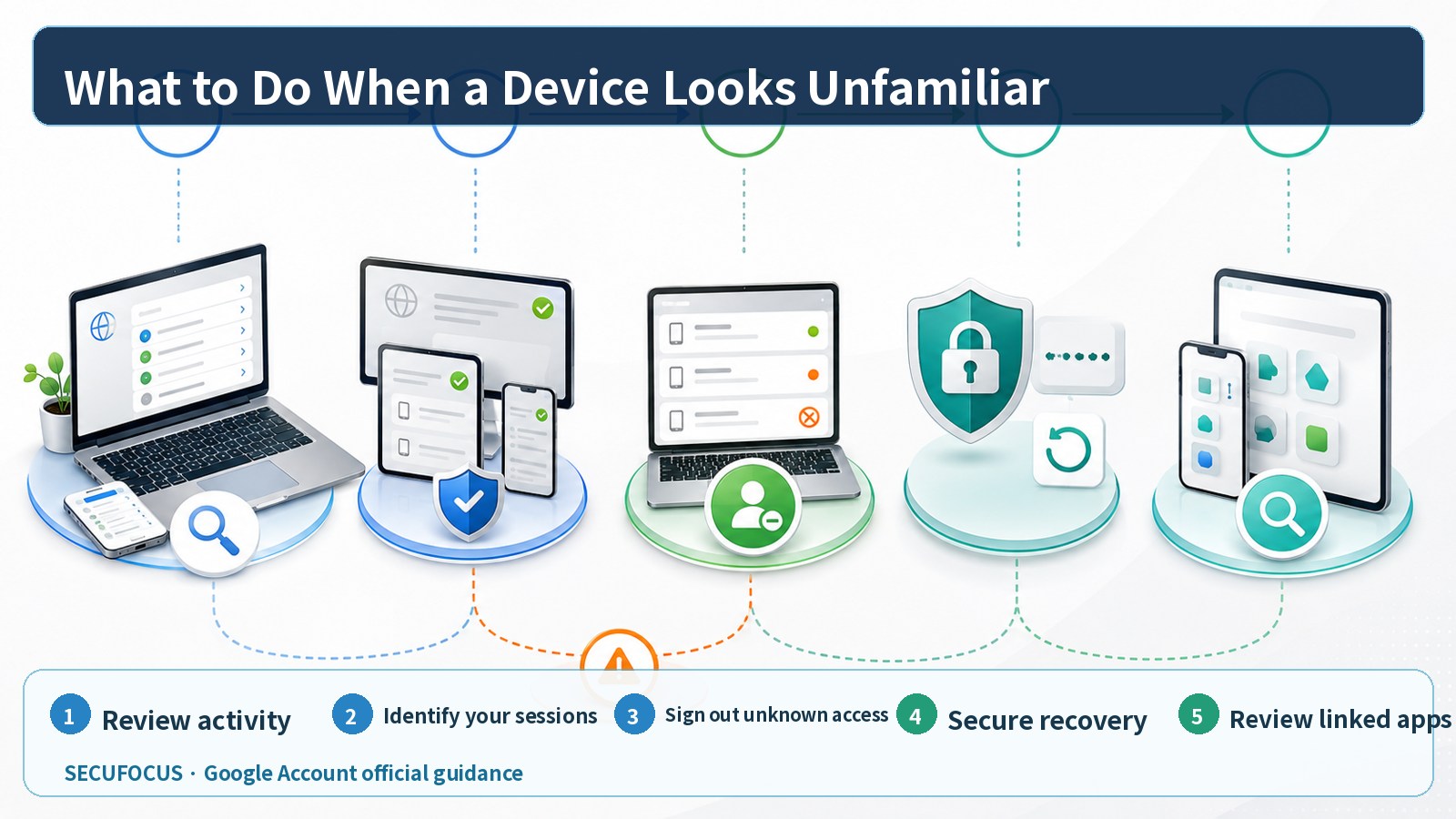
If the activity is not yours
- Select the suspicious device or session and sign it out. If several sessions share the same device name and remain uncertain, sign out all of those sessions.
- Change the Google Account password to a new password that is not reused elsewhere. Change any reused passwords on other services as well.
- Verify that the recovery phone number and recovery email belong to you, and remove anything you did not add.
- Review two-step verification and other sign-in methods for devices or methods you did not register.
- Review apps linked to the Google Account and remove access for unfamiliar or unused apps.
- If you use Gmail, check forwarding addresses, filters, and Sent mail for rules or messages you did not create.
If you cannot sign in
Use Google's official account-recovery flow rather than a search advertisement or an unverified support number. Try from a familiar device and location, and provide the most recent password and recovery information you remember.
For a managed Google Workspace account, contact the organization's IT or security administrator promptly. Administrative logs, session controls, and recovery policy may be managed by the organization.
Completion checklist
- All unfamiliar devices and sessions are signed out.
- The new password is unique to this account.
- Recovery phone and email details belong to you.
- Two-step verification and sign-in methods contain no unfamiliar entry.
- Unknown or unnecessary linked-app access has been removed.
- Gmail forwarding, filters, and Sent mail show no unauthorized change.
- A workplace or school administrator has been notified when applicable.
Continue watching sign-in, password-change, and recovery-information alerts for several days. If unfamiliar activity returns, update the device operating system and browser and check for unwanted extensions or apps.
Sources reviewed
- Secure a hacked or compromised Google AccountGoogle Account Help · Official source
- See devices with account accessGoogle Account Help · Official source
- Manage links between your Google Account & apps from other developersGoogle Account Help · Official source
SECUFOCUS NOW reorganized and analyzed the material above. This article does not replace the original sources.
Related SecuNote articles

Cloned Car Dealership Websites: How to Verify a Vehicle Before Paying
Scammers are cloning real car dealership websites, listings, photos, reviews, and sales policies to demand upfront wire payments…
Unfamiliar Configuration Profile on iPhone? Check Management and Secure the Device
Configuration profiles can apply work or school accounts, VPN settings, certificates, and other controls to an iPhone. This guide…
Fake Buyer-Protection Portals: Refund, ID and Bank-Detail Checks
A newly disclosed HKICL impersonation scheme combined refund support, identity verification, bank details, a fake wallet and an…
Comments
No comments yet.